1. SafeKey Web Portal Account
It is important to understand that SafeKey has two core web portals.
- SafeKey License Management Portal: This is where you add users and obtain new licenses.
UsersUser license MUST be addedhereandfully set upaccepted before they can interact with the SafeKey Vault portal. - SafeKey Vault
PortalPortal::This is where users' rights areassigned.assigned, and organisations are configured. In a single vault, you can create multiple organisations with separate rights and password shares.
In essence, adding new users is a two-step process. Firsly they must be assigned a licence. To achieve this, an "invite" is sent to the new user that they must accept. This license effectily grant the user access to the Vault. As a Vault member, a user can store their own passwords, but will not have access to any business-wide password sharing.
The second component is to add the user to a specific organisation(s). Once again, this is an invitation-and-acceptance process, and it is where they will gain access to corporate passwords.
What is the Importance of a Vault or Organisational SafeKey Administrator?
The Admin is the individual within your organisation who controls access to passwords, can see them, and can change them if required. If you are using multiple organisations, you can have separate administrators in each organisation. Administrators are generally those who get early access to set up an organisation, save passwords (which can be migrated from existing browsers if required), and assign rights to those who get to see or use them.
Often, we have found it beneficial to have admins use the service for a week to get comfortable and set up passwords before inviting users to join.
The first step in the process is to set up a Safekey License Management portal login (https://www.safekey.co.nz/register/)
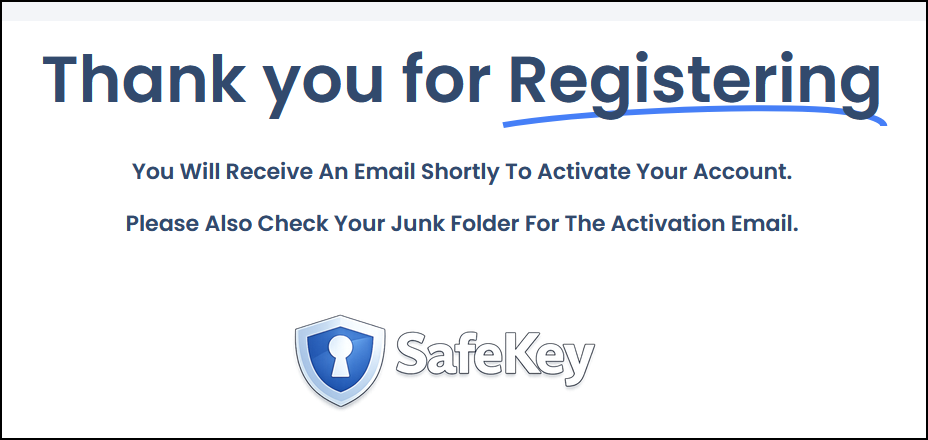
During this step, you will be asked to provide your details and confirm your email address. You will receive a confirmation to complete access to the website portal.
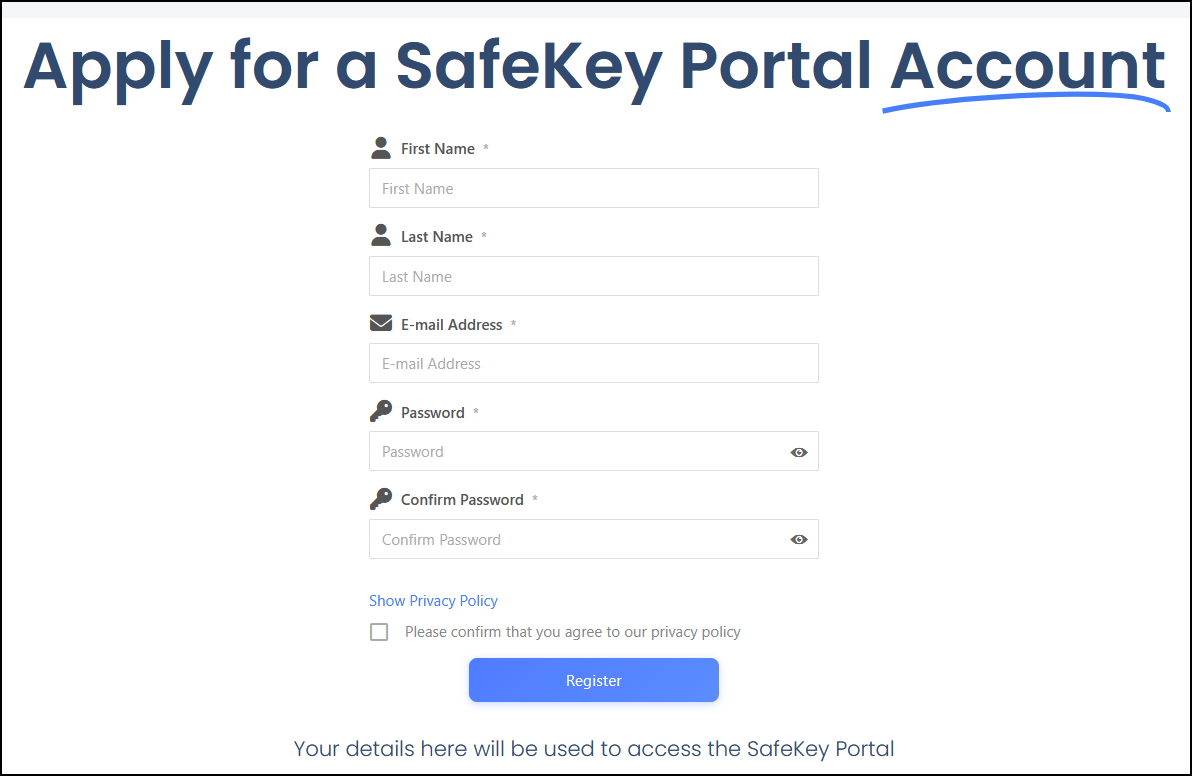
Once you have successfully completed and submitted the form, you will see the following confirmation.